

 After you complete the installation and configuration, the CrowdStrike Foundry workflow can retrieve endpoint telemetry from Falcon Next-Gen SIEM, transform it to the BloodHound Enterprise schema, and upload it to your BloodHound Enterprise tenant.
This page shows you how to run the workflow, review the available dashboard views, and verify a successful upload.
The integration uses Foundry Functions and Falcon Fusion to automate BloodHound Enterprise data collection and ingestion.
After you complete the installation and configuration, the CrowdStrike Foundry workflow can retrieve endpoint telemetry from Falcon Next-Gen SIEM, transform it to the BloodHound Enterprise schema, and upload it to your BloodHound Enterprise tenant.
This page shows you how to run the workflow, review the available dashboard views, and verify a successful upload.
The integration uses Foundry Functions and Falcon Fusion to automate BloodHound Enterprise data collection and ingestion.
Run the workflow manually
The workflow runs automatically on an hourly schedule, but you can also run it manually after installation and configuration to confirm that data reaches BloodHound Enterprise successfully.1
Open the workflow list
- Log in to CrowdStrike Falcon.
-
Go to Fusion SOAR > Workflows.
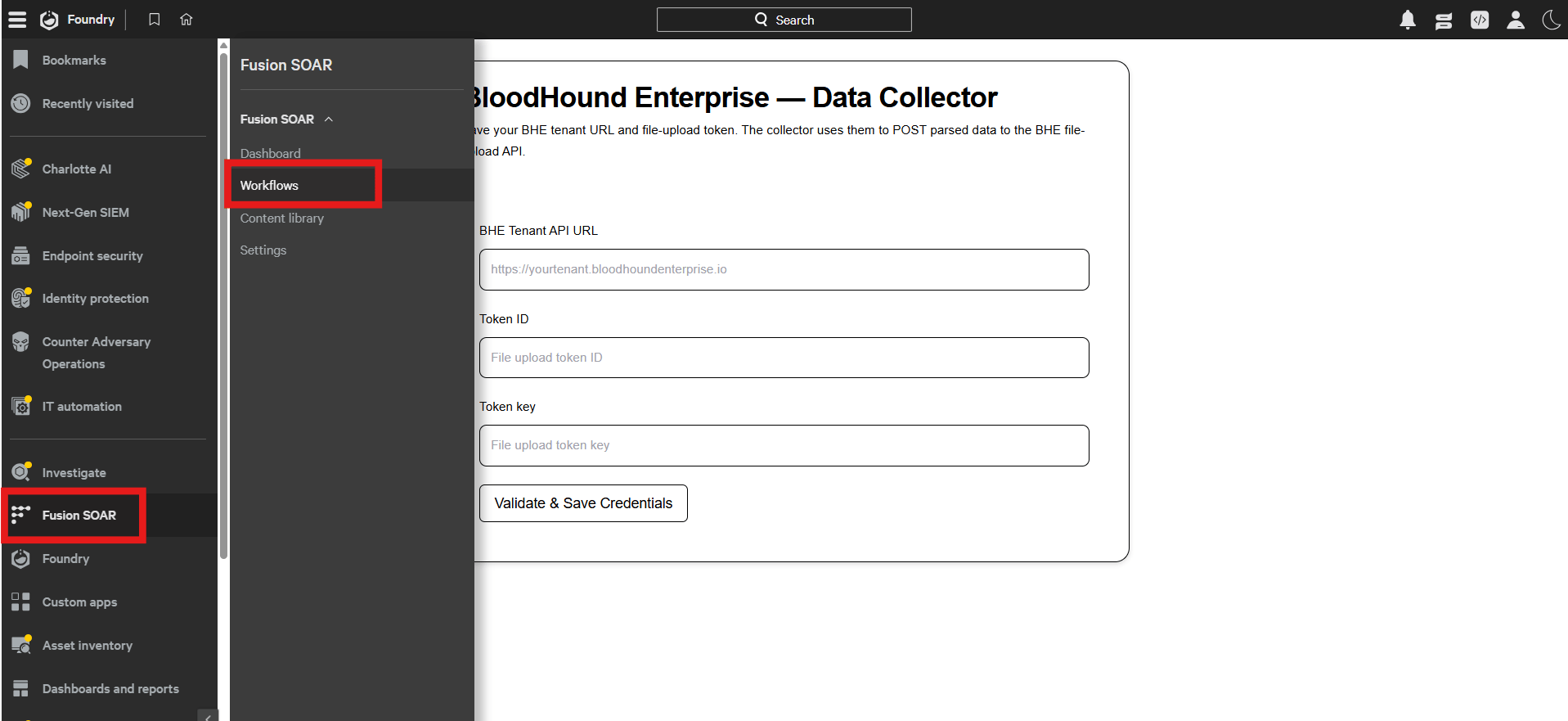
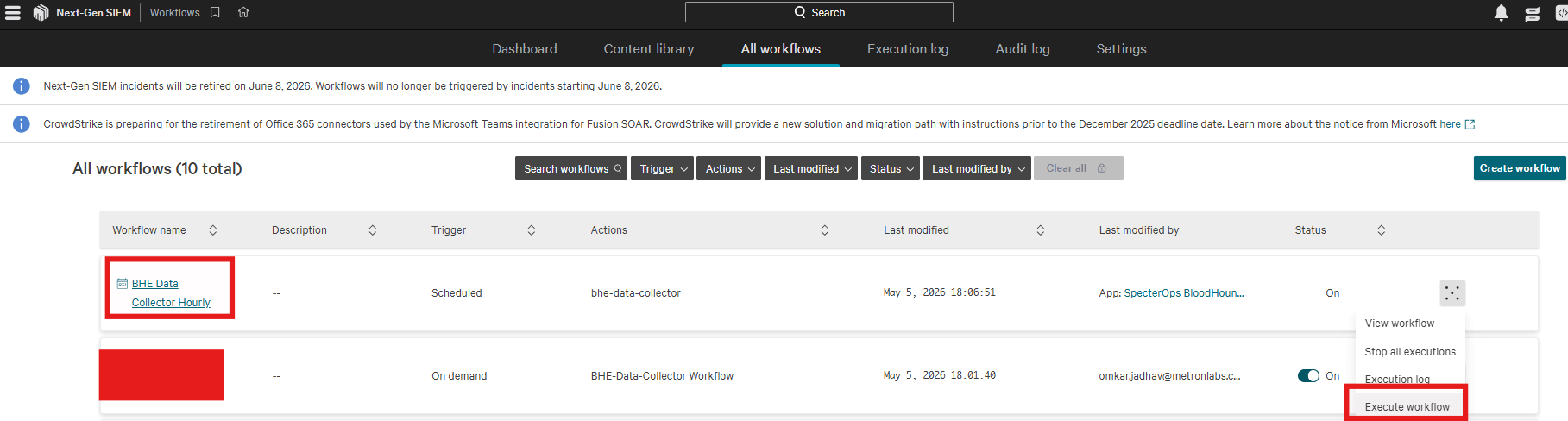
- Locate the BloodHound Enterprise NG SIEM Workflow.
2
Execute the workflow
-
Open the workflow action menu and click Execute Workflow.
-
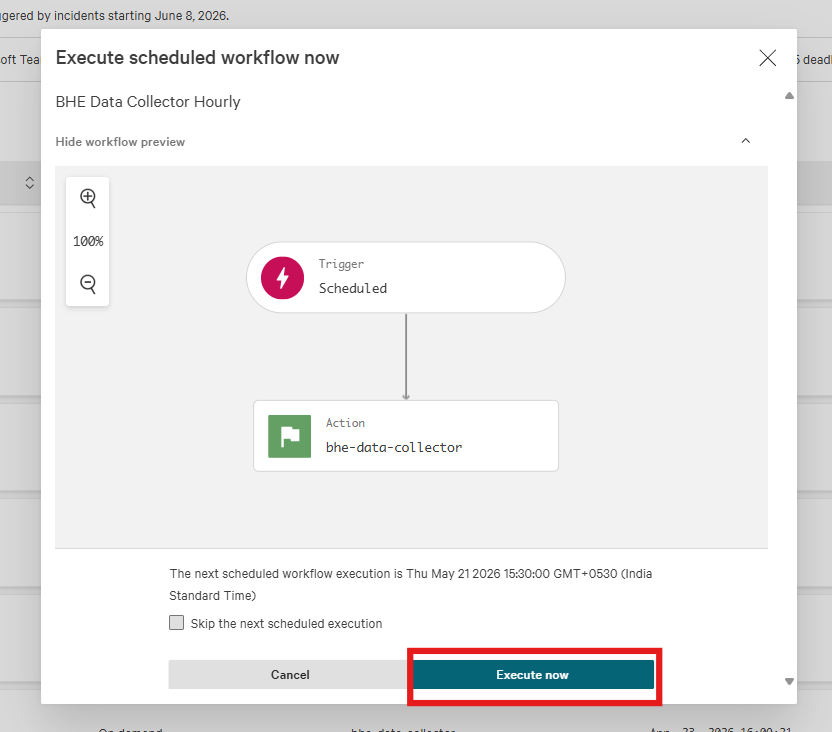
In the confirmation dialog, click Execute now.
3
Open the execution results
-
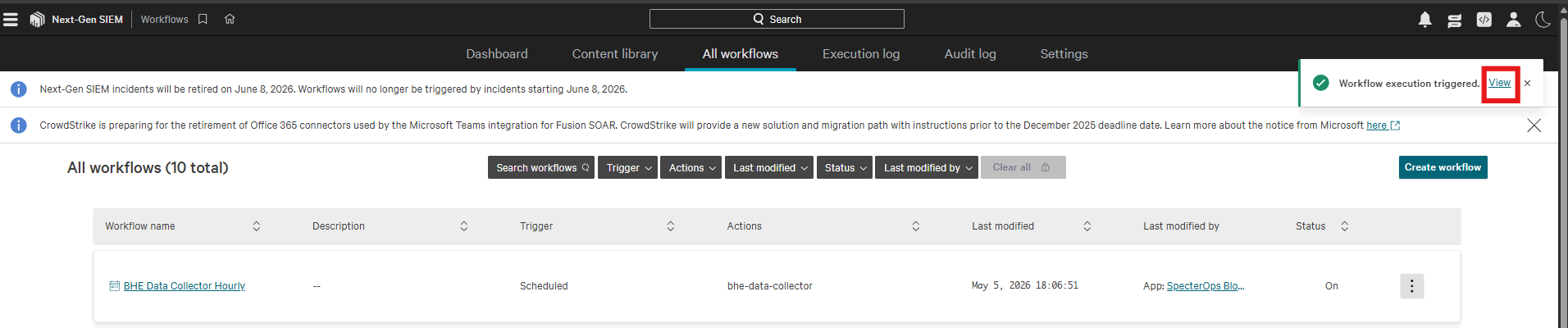
When CrowdStrike displays the workflow execution notification, click View.
-
Review the real-time execution results for the run.
Record the reported job ID. You can use it to verify data ingestion in BloodHound Enterprise.
Review the dashboard
The CrowdStrike dashboard provides visibility into the data that the integration collects and uploads to BloodHound Enterprise. To navigate to the dashboard in CrowdStrike Falcon, go to Next-Gen SIEM > Dashboard. The dashboard displays the following visualizations to monitor host activity and data ingestion:Verify upload events
The application writes an audit event to Falcon Next-Gen SIEM after it uploads data successfully to BloodHound Enterprise. After the workflow completes successfully, confirm the upload in both Falcon Next-Gen SIEM and BloodHound Enterprise.1
Open Event Search
- Log in to CrowdStrike Falcon.
-
Go to Next-Gen SIEM > Log management > Event Search.
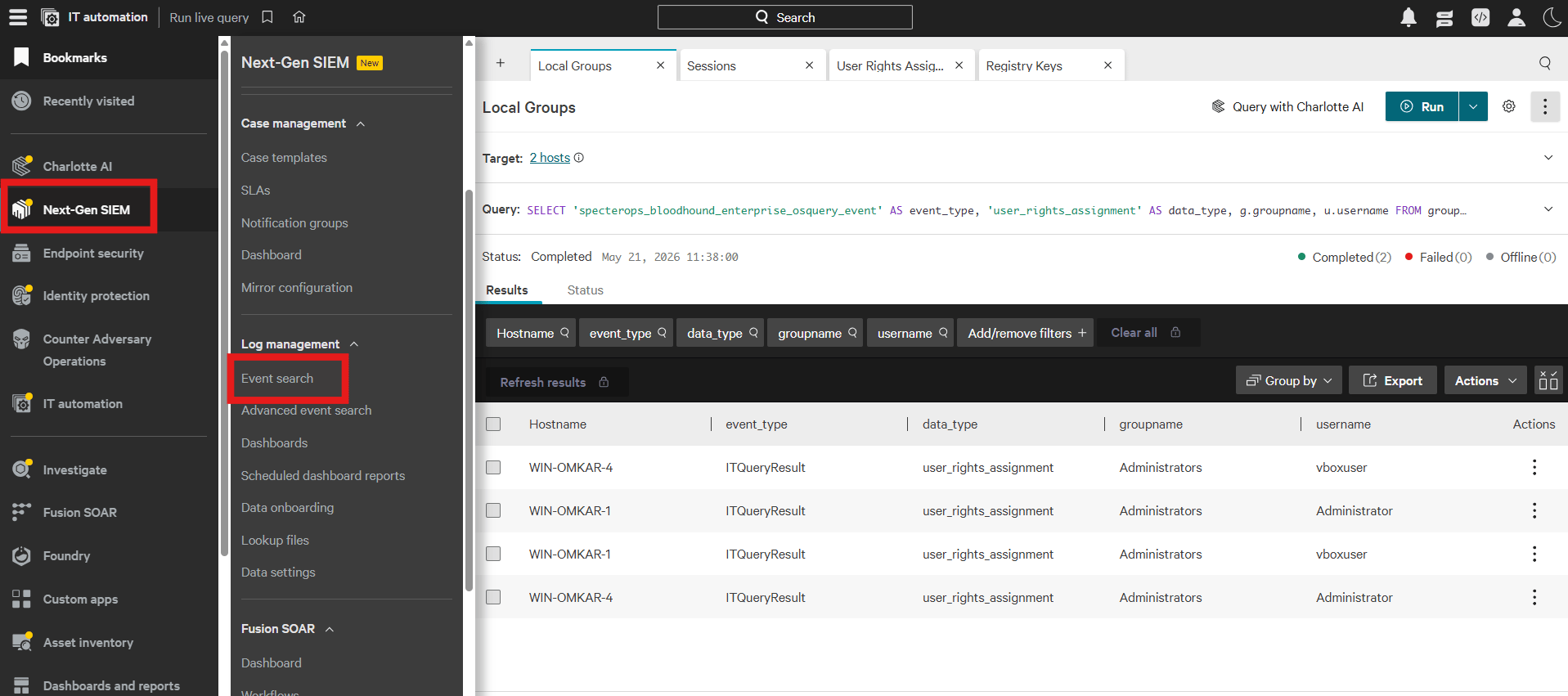
2
Filter for upload audit events
Apply a custom filter with the following values:
3
Confirm the upload details
- Confirm that a matching event appears for the workflow run.
- Review the event details for the job ID, computer count, Next-Gen SIEM event counts, and checkpoint details.
-
Record the job ID to verify data ingestion in BloodHound Enterprise.
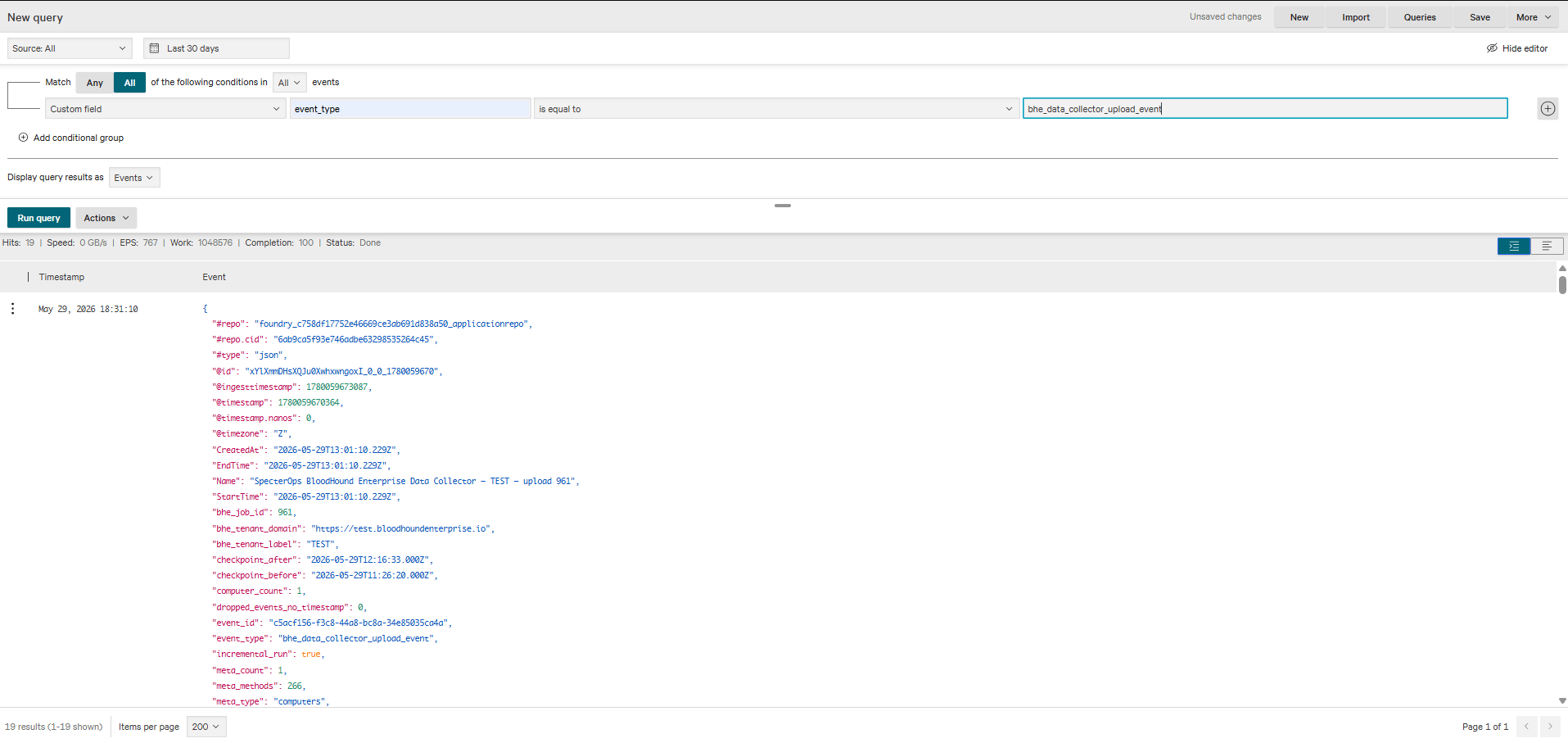
4
Open the BloodHound Enterprise tenant
- Log in to your BloodHound Enterprise tenant.
- Go to Administration > Data Collection > File Ingest.
5
Confirm the matching ingestion job
Locate the latest ingestion entry and verify it against the job ID from the Falcon Next-Gen SIEM audit event.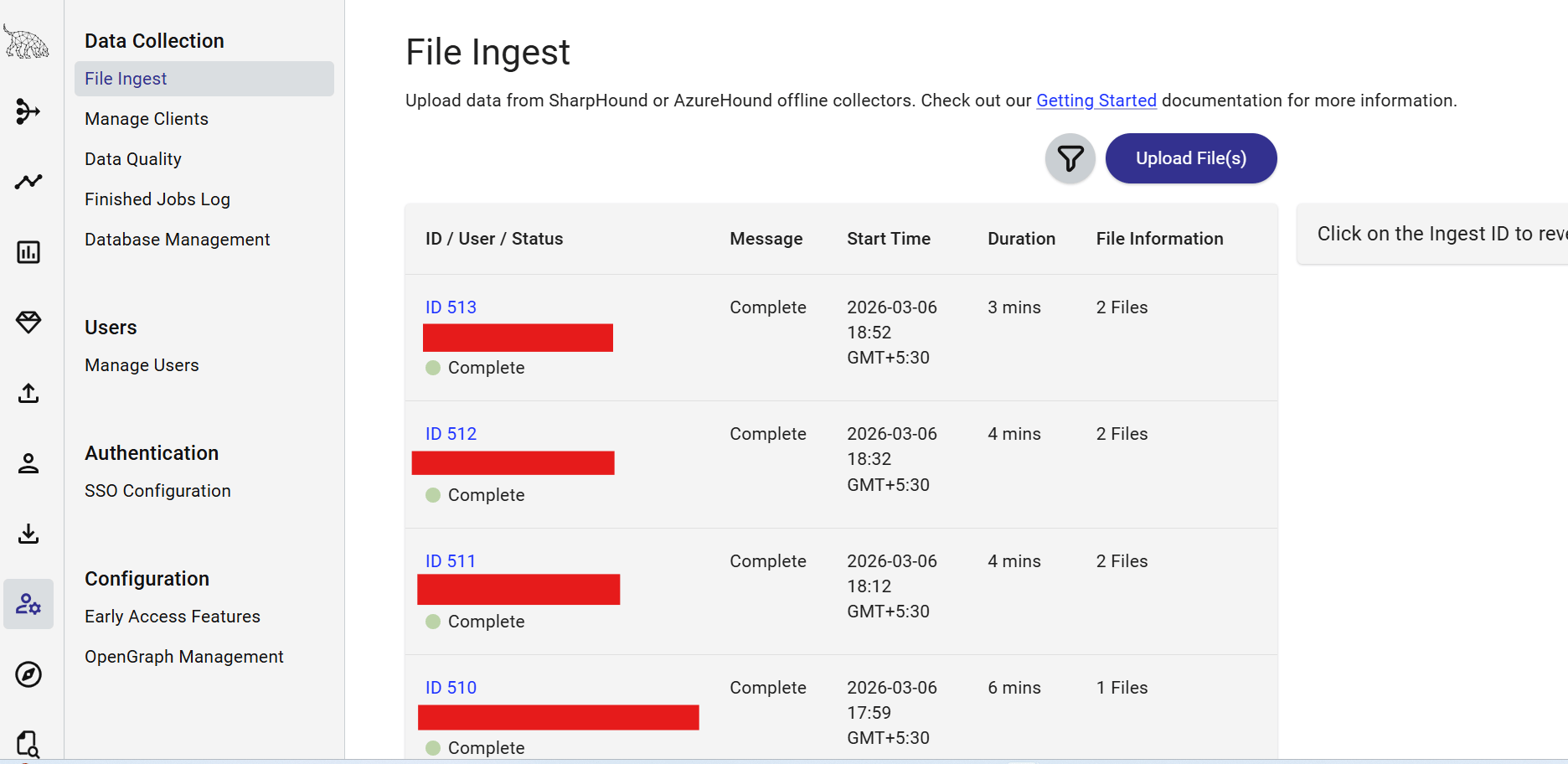
- Confirm that the upload start time matches the workflow execution time.
- Confirm that the status of the job is Complete.